
How to Claim Your NCEdCloud Account
The essential first step to activating your digital learning environment.
If you are a new staff member, a recently enrolled student in specific grades, or transitioning into a district that fully utilizes the Identity and Access Management (IAM) service, your very first interaction with the portal will be the "Claim My Account" process. This is not merely a login step; it is the fundamental initialization of your digital identity within the North Carolina educational system.
Claiming your account serves three critical functions: First, it verifies your identity against the state's central database. Second, it allows you to establish a secure, personalized password, replacing any temporary default credentials. Third, and perhaps most importantly, it requires you to set up Security Challenge Questions, which are your safety net for self-service password recovery in the future.
This comprehensive guide will walk you through the entire claiming process from start to finish, highlighting the differences between student and staff procedures, and offering best practices for creating a secure account.
1. Who Needs to Claim an Account?
Not everyone in the school system is required to go through the claiming process. The requirements vary based on age, role, and district policy.
For Students
Generally, students in lower elementary grades (Grades K-5) do not claim their accounts. Their accounts are pre-provisioned by the district IT staff, and they use simplified login methods (like QR code badges or generic classroom passwords).
Students in Grades 6 through 12 (Middle and High School) are almost always required to claim their accounts. This shift teaches digital responsibility and allows older students to manage their own passwords independently.
For Teachers and Staff
All new employees (teachers, administrators, support staff, and substitute teachers) must claim their accounts upon hiring, once their data has been entered into the district's HR system and synced with the state portal.
2. Prerequisites: Gathering Your Information
Before you click the "Claim My Account" button, you must gather specific personal information. The system will ask you to input these details precisely as they appear in official school records (PowerSchool for students, HR systems for staff). If the data does not match exactly, the system will reject the claim attempt to prevent unauthorized access.
You will need:
- Your 10-digit UID: This is your Username (State Student ID or Employee UID).
- Grade Level: (For students only). You must select the exact grade you are currently enrolled in.
- LEA / Charter Code: LEA stands for Local Education Agency. This is a unique 3-digit code assigned to your specific school district or charter school. (e.g., Wake County is 920, Charlotte-Mecklenburg is 600). If you do not know your LEA code, ask your teacher or check your school's website.
- Date of Birth: Must be entered in the exact format requested (usually YYYYMMDD).
3. The Step-by-Step Claiming Process
Once you have your information ready, follow these instructions carefully. It is highly recommended to complete this process on a desktop or laptop computer rather than a mobile phone to avoid typing errors.
- Navigate to the Portal: Open your web browser and go to the official URL:
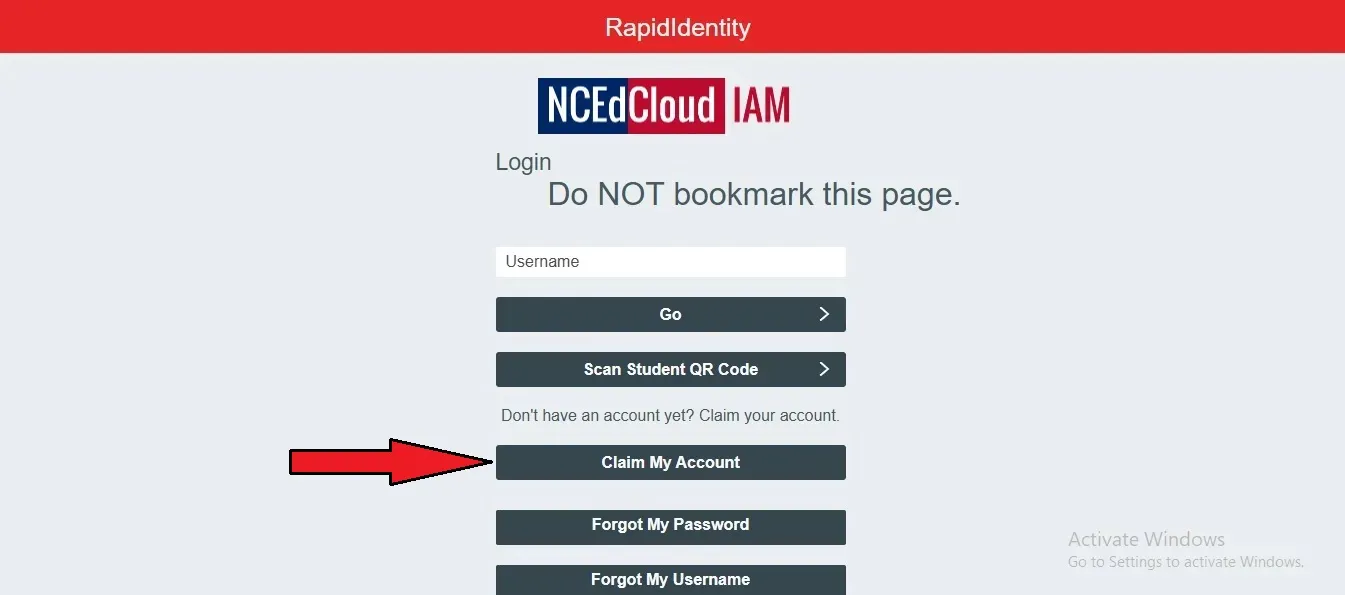
my.ncedcloud.org. - Locate the Claim Button: On the main login screen, look near the bottom (below the main login fields) for a button or link labeled "Claim My Account". Click it.
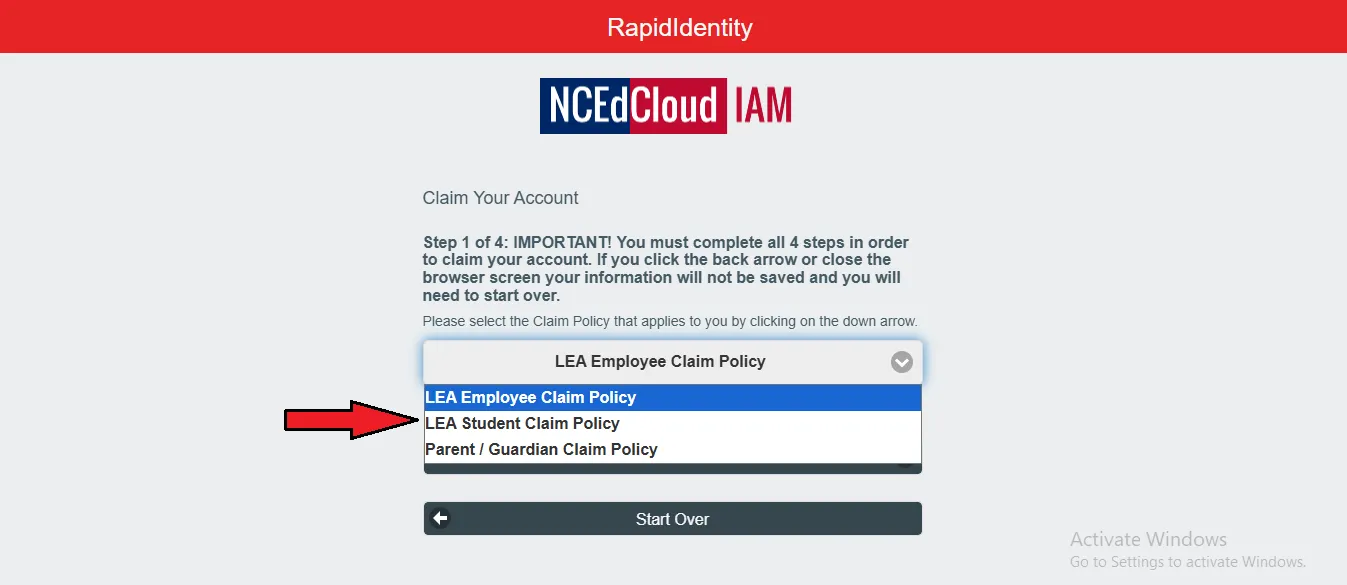
- Select Your Policy: You will be presented with a dropdown menu asking you to select your "Claim Policy."
- If you are a student (Grades 6-12), select "LEA Student Claim Policy".
- If you are a staff member, select "LEA Employee Claim Policy".
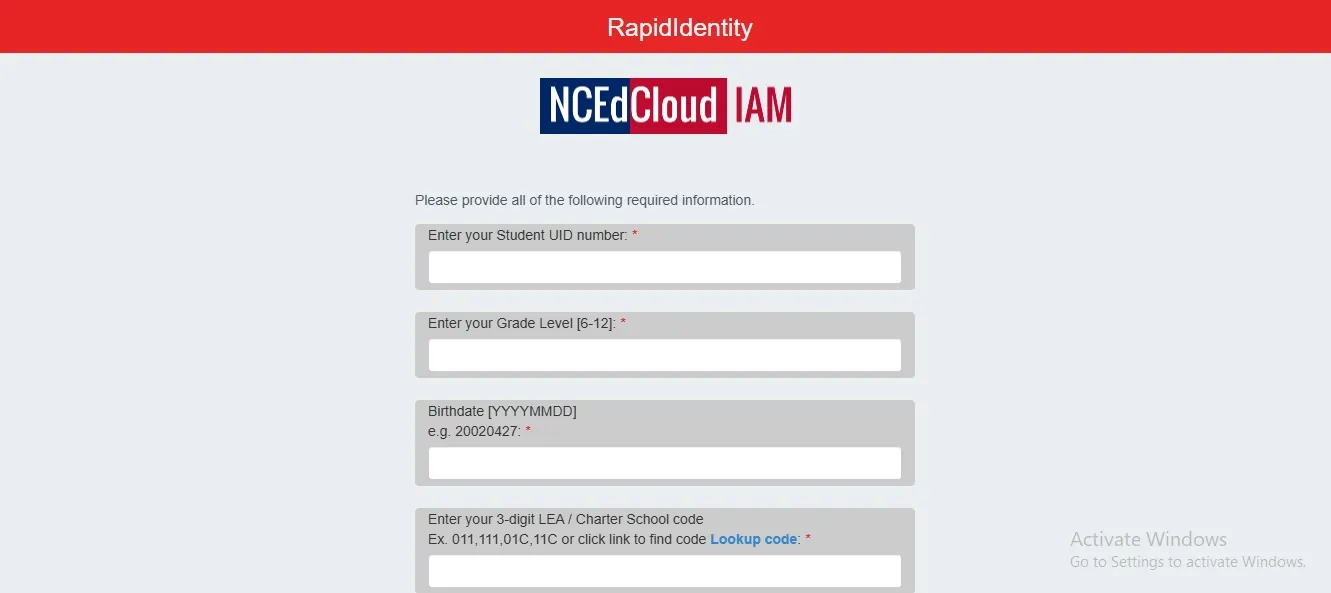
- Enter Identity Information: This is the crucial verification step. You will see several fields:
- Username: Enter your 10-digit UID.
- Grade: (Students only) Select from the dropdown.
- LEA / Charter Code: Enter your 3-digit district code.
- Birthdate: Enter your DOB carefully following the required format (e.g., 20080515 for May 15, 2008).
- Submit for Verification: Check the box proving you are not a robot (reCAPTCHA) if present, and click "Next". The system will now check the central database. If the information matches exactly, you will proceed to the password creation screen. If it does not match, you will receive an error.
4. Creating a Strong, Secure Password
If your identity is verified, the next screen requires you to create your new password. NCEdCloud has strict password complexity requirements to ensure the security of educational data.
Standard Password Rules (These may vary slightly by district):
- Must be at least 8 to 12 characters long.
- Must contain at least one uppercase letter (A-Z).
- Must contain at least one lowercase letter (a-z).
- Must contain at least one number (0-9).
- Cannot contain your username, first name, or last name.
- Some districts require a special character (e.g., !, @, #, $, %).
Tips for a Strong but Memorable Password: Instead of a complex string of random characters (like Xj9!pLm2), consider using a "passphrase". A passphrase is a sequence of words that is long but easy to picture in your mind. For example, BlueTigerJumps45! is much stronger and easier to remember.
Type your new password in the first box, and re-type it exactly the same way in the confirmation box. Click "Next".
5. Setting Up Security Challenge Questions
This is arguably the most critical part of the claiming process. You must select and answer a series of security questions (usually 3 to 5 questions depending on district policy).
Why are these questions important? If you ever forget your password in the future, you will click the "Forgot My Password" link. The system will then ask you to answer these exact questions. If you answer them correctly, you will be allowed to reset your password yourself, without waiting for a teacher or IT help desk to assist you.
Best Practices for Challenge Questions:
- Choose questions with absolute answers: Avoid questions where the answer might change over time (e.g., "What is your favorite food?"). Instead, choose facts (e.g., "In what city was your mother born?").
- Remember formatting: The system is exact. If you answer "St. Louis" today, but later type "Saint Louis" when trying to recover your password, it will fail. Keep your answers simple and consistent.
- Do not use easily guessable information: If the answer to your security question can be found by looking at your public social media profiles, it is not a secure question.
Once you have selected your questions and provided the answers, review them one last time. Click the final submission button (usually labeled "Save" or "Finish").
Important Note: After successfully claiming your account, it is highly recommended to write your UID and the *answers* to your challenge questions down on a piece of paper and store it in a secure location at home. Do not write your actual password down.
6. Troubleshooting Common Claiming Errors
The claiming process can sometimes result in errors, primarily due to data mismatch. Here is how to handle the most common issues.
Error: "Account not found" or "Information does not match"
This means the data you typed in Step 4 does not perfectly match what is in PowerSchool or the HR system.
- Check LEA Code: Did you use the correct 3-digit code for your district?
- Check Date of Birth Formatting: Did you use YYYYMMDD? If your birthday is March 5, 2010, you must type
20100305. Typing 03052010 will cause an error. - Recent Enrollment: If you are a brand new student who just registered at the school yesterday, your data may not have synced to the state portal yet. This synchronization usually happens overnight. Wait 24 hours and try again.
- Data Entry Error: It is possible the school entered your birthdate incorrectly into PowerSchool. If you are certain you are typing everything correctly, contact your school's Data Manager to verify your official records.
Error: "Account already claimed"
You cannot claim an account twice. If you see this message, it means you (or someone else) has already completed this process.
- If you claimed it previously but forgot your password, you must use the "Forgot My Password" workflow on the main login screen, NOT the Claim My Account button.
- If you are absolutely certain you never claimed it, immediately notify your school's technology staff, as this could indicate unauthorized access.
Error: "Password does not meet complexity requirements"
The password you are trying to create is too weak.
- Review the password rules listed in Section 4. Ensure you have a capital letter, a lowercase letter, a number, and sufficient length. Ensure you are not using your name in the password.
7. The Importance of Data Privacy in NCEdCloud
When you claim your account, you are effectively taking ownership of your digital footprint within the North Carolina educational system. The state takes data privacy incredibly seriously, and the IAM portal is built with multiple layers of enterprise-grade security to protect student and staff information. However, security is a shared responsibility.
The password you create during the claiming process is the key to sensitive information, including official grades, attendance records, disciplinary history, and direct communication channels with educators. If this account is compromised because of a weak password or an easily guessed security question, it can cause significant disruption. Therefore, treating your NCEdCloud credentials with the same level of care as your personal banking information is not an overstatement—it is a necessity.
Furthermore, the claiming process ensures that only verified individuals—those physically enrolled in or employed by a North Carolina public school—can gain entry into the state's secure intranet. The strict matching of UID, Date of Birth, and LEA code acts as a robust firewall against unauthorized external access attempts.
8. What to Do After Claiming Your Account
Congratulations! Once you see the success screen confirming your account has been claimed, you are ready to enter the portal.
The system will usually redirect you back to the main login screen (my.ncedcloud.org). You should now log in using your UID as the username and the brand new password you just created. Upon successful login, you will see your RapidIdentity Applications Dashboard and can begin accessing Canvas, PowerSchool, and other vital educational tools.
Taking the time to carefully and accurately claim your account ensures a frustration-free school year. Remember your challenge questions, keep your password secure, and enjoy seamless access to your digital learning resources. If you encounter any persistent issues, do not hesitate to reach out to your school's designated technology facilitator.
Ready to Begin?
If you have gathered all your prerequisites and understand the process, you can head over to the official portal to claim your account now.