
NCEdCloud Password Recovery Guide
Regain access to your digital learning environment quickly and securely.
Forgetting a password is one of the most common and frustrating experiences in the digital age. When that password secures access to your primary educational portal—housing your grades, assignments, and essential classroom tools—the urgency to reset it is high. The NCEdCloud IAM Service has been specifically engineered to handle this scenario efficiently through a self-service password reset system.
However, this self-service mechanism relies entirely on the preparations you made when you initially claimed your account. Specifically, it depends on whether you established Security Challenge Questions. If you did, resetting your password takes mere minutes. If you did not, or if you are a younger student whose account is managed entirely by the school, the process requires intervention from school staff.
This extensive guide will cover every possible scenario regarding a forgotten NCEdCloud password. We will walk through the self-service recovery steps, explain the alternative administrative reset process, discuss account lockouts, and provide expert tips on creating passwords that are both highly secure and memorable.
1. The Self-Service Password Reset Process
If you are a student in Grade 6-12, or a teacher/staff member, and you have previously claimed your account and set up challenge questions, you are in luck. You can regain access to your account 24/7 without needing to contact your school's IT department. Here is exactly how to do it.
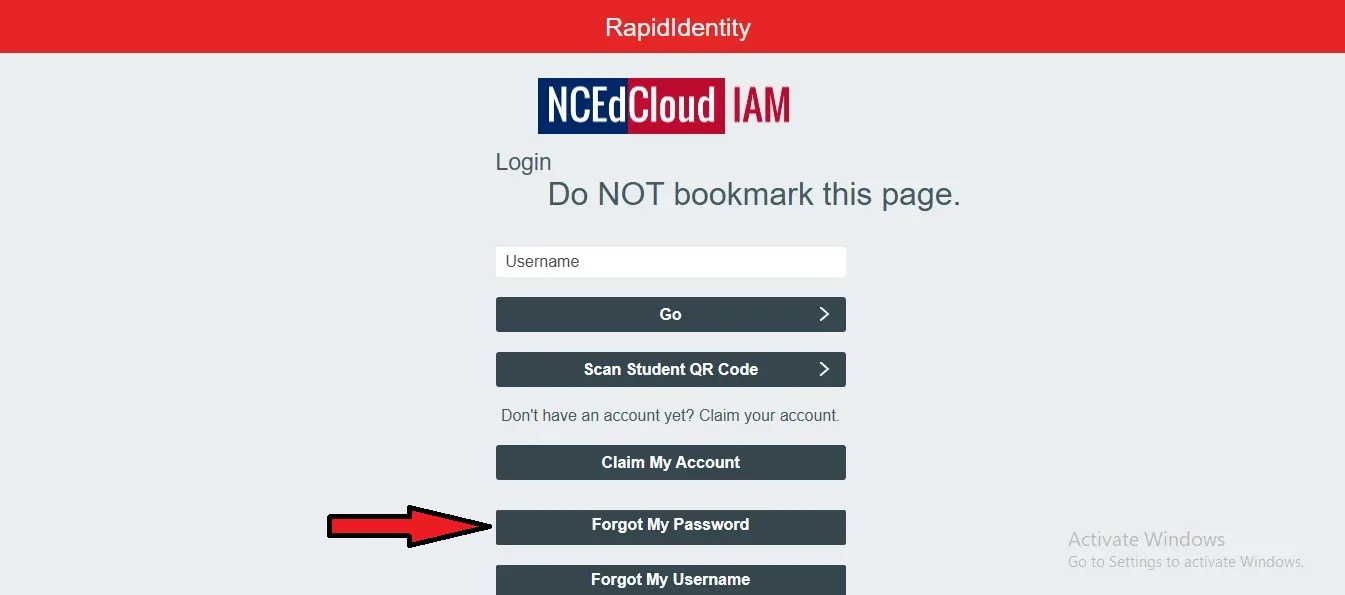
- Go to the Main Login Portal: Open your web browser on any device and navigate to
my.ncedcloud.org. This is the only official starting point for password recovery. - Locate the 'Forgot My Password' Link: On the RapidIdentity login screen, look just beneath the field where you would normally type your username. You will see a small, often blue, text link that says "Forgot My Password". Click this link.
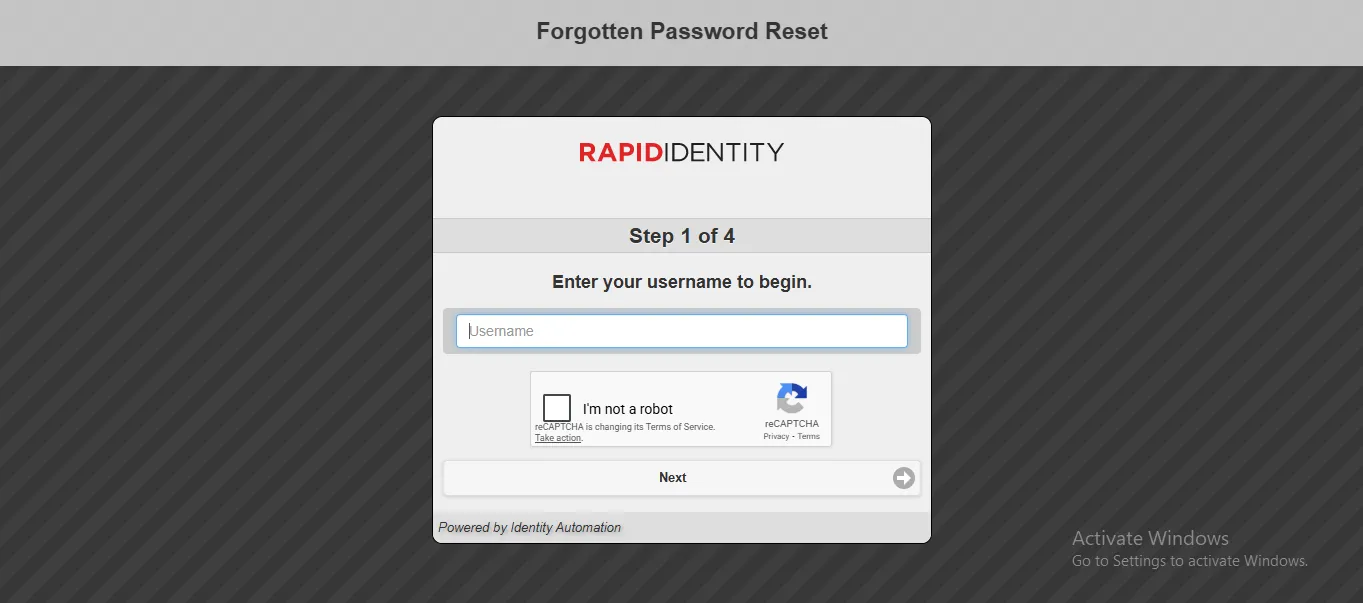
- Enter Your Username (UID): The system must first identify which account needs a password reset. You will be prompted to enter your 10-digit State Student ID or your State Employee UID. Type this carefully. If you enter the wrong UID, you will be trying to reset someone else's account and will fail the security questions. Click "Next".
- Answer the Challenge Questions: This is the critical security checkpoint. The system will present you with one or more of the security questions you selected when you first claimed your account.
Crucial Note on Formatting: Your answers must exactly match what you originally typed. They are generally not case-sensitive, but punctuation matters. If your question is "What is your favorite food?" and you originally answered "pizza," but today you type "pizza!", the system will reject it. Take your time and think about how you typically format your answers. - Create a New Password: If you successfully answer the challenge questions, the system will verify your identity and present you with a screen to create a new password. You cannot reuse your old password.
Understanding Password Complexity Requirements
When creating your new password on the reset screen, you must adhere to the state's security standards. A weak password will be immediately rejected, causing further delays. Ensure your new password meets these criteria:
- Length: It must be at least 8 to 12 characters long (district policies vary, but longer is always better).
- Complexity: It must include at least one uppercase letter, one lowercase letter, and one number.
- No Personal Info: It cannot contain your first name, last name, or your username (UID).
Type the new password in the first field, re-type it identically in the confirmation field, and click the "Reset Password" or "Save" button.
2. What If I Forget the Answers to My Challenge Questions?
The self-service system is highly secure, which means it is unforgiving. If you cannot remember the answers to your security questions, or if you repeatedly answer them incorrectly, the self-service portal will eventually lock you out of the recovery process entirely to prevent a hacker from guessing your answers.
If you find yourself in this situation, the self-service route is no longer an option. You must proceed to the Administrative Reset Process outlined in Section 3.
3. The Administrative Reset Process (When Self-Service Fails)
If you are a K-5 student (who never set up challenge questions), or an older user who has forgotten their challenge answers, you require an "Administrative Reset." This means a human being with special administrative privileges in the RapidIdentity system must manually log in and generate a new password or a temporary bypass code for you.
For Students
Your primary point of contact is your teacher. The NCEdCloud system empowers classroom teachers with a specific administrative tool called the "Teacher Dashboard." Through this dashboard, your teacher has the authority to view the accounts of the students rostered to their classes and initiate a password reset.
- In Person: Simply raise your hand or approach your teacher before class begins and state, "I am locked out of NCEdCloud and need my password reset."
- Remote Learning: If you are learning from home, you or your parent should email the teacher immediately explaining the situation.
- If the teacher is unavailable or cannot resolve the issue, the escalation path is to contact the school's Data Manager or Media Coordinator, who possess school-wide administrative rights.
For Teachers and Staff Members
Teachers cannot reset their own passwords administratively, nor can another teacher do it for them. If a staff member is locked out and cannot use the self-service recovery, they must contact their school building's designated Technology Facilitator or the school's Data Manager.
If the issue persists, the staff member must submit a formal help desk ticket to the district's central IT department. State-level NCDPI support does not handle end-user password resets directly.
4. Dealing with Account Lockouts
There is a significant difference between "forgetting a password" and having a "locked account."
If you type your password incorrectly multiple times in a row (usually 5 to 10 times, depending on the district's security settings), the RapidIdentity system will automatically lock your account. This is a vital security feature designed to stop automated bot attacks that try thousands of password combinations to break into an account.
If you receive an "Account Locked" error message:
- Wait for the Timer: In most districts, an account lockout is temporary. A timer begins the moment the account locks. If you wait 15 to 30 minutes and try again with the correct password, you will often be allowed back in.
- Manual Unlock: If you need immediate access and cannot wait for the timer, you must follow the Administrative Reset path described above. A teacher or IT administrator can manually remove the lock from your profile instantly.
Pro Tip: If you type your password incorrectly twice, STOP. Take a deep breath, check that your Caps Lock is turned off, ensure your Num Lock is on (if using a 10-key pad), and type very slowly. It is better to type slowly than to trigger a 30-minute lockout.
5. Best Practices: Creating Passwords You Won't Forget
The best way to handle password recovery is to never need it in the first place. Creating a highly secure password that is also easy for a human brain to remember is entirely possible if you use the "Passphrase Method."
Instead of creating a random string of characters that looks like a cat walked across your keyboard (e.g., qW7!xLz9), create a phrase or a sentence. A phrase is much longer (which computers hate) but makes logical sense to you (which human brains love).
Examples of Passphrases:
BlueSkyCoffeeMug88!RunningFastInTheRain2024MyDogEatsGreenApples!
Notice how these passphrases easily meet all complexity requirements (length, uppercase, lowercase, numbers, and symbols) but are incredibly easy to visualize and memorize.
6. A Note on Browser Auto-Fill and Password Managers
Many users rely on Google Chrome, Safari, or Microsoft Edge to "save" their passwords and auto-fill them on the login screen. While convenient, this is the leading cause of forgotten passwords. When the browser does the work, the brain forgets the information.
If you use a password manager, that is excellent for security. However, if your browser auto-fills a password that is outdated or incorrect, it will repeatedly trigger an "invalid password" error, eventually locking your account. If you are having chronic login issues, your first troubleshooting step should be to delete the saved NCEdCloud password from your browser's settings and type it in manually.
By understanding both the self-service tools available to you and the proper channels for administrative support, a forgotten password will be nothing more than a brief hiccup rather than a major roadblock to your daily educational activities.
Ready to Reset Your Password?
If you have your UID ready and remember your security challenge answers, click below to go directly to the official password recovery page.