
Complete NCEdCloud User Login Guide
Master the login process, secure your account, and troubleshoot common issues.
Welcome to the most comprehensive guide available for navigating the NCEdCloud Identity and Access Management (IAM) login process. Whether you are a newly enrolled student stepping into the digital classroom for the first time, a seasoned educator managing multiple class dashboards, or a parent assisting your child with their homework, understanding how to seamlessly access this unified portal is absolutely critical for educational success.
The transition to digital learning platforms has revolutionized how education is delivered across North Carolina. The NCEdCloud system, powered by RapidIdentity, sits at the very heart of this technological ecosystem. It functions as the primary gateway—a single secure door—through which hundreds of thousands of users pass daily to access their grades in PowerSchool, submit assignments in Canvas, and utilize a myriad of other district-approved digital tools.
In this extensive guide, we will break down every single aspect of the login experience. We will explore the necessary prerequisites, provide highly detailed step-by-step instructions for various devices, deeply analyze common error codes that frustrate users, and offer expert troubleshooting tips to ensure you are never locked out of your educational resources when you need them most.
1. Pre-requisites: What You Need Before Logging In
Preparation is key to a smooth digital experience. Before you even attempt to navigate to the official login page, it is highly recommended that you ensure you have all the necessary components ready. Failing to have these items prepared is the leading cause of login frustration.
- Your Correct UID (Username): For students, this is almost always your 10-digit State Student ID number. You can find this on your report card, student ID badge, or by asking your homeroom teacher. For teachers and staff, this is your State Employee UID.
- Your Active Password: If you are a new staff member or a student in specific grades (typically 6-12), you must have already completed the "Claim My Account" process to establish your password. If you are a younger student (Grades K-5), your password may be a standard district-assigned default password or a pictograph (QR code) badge.
- A Supported Web Browser: The portal is highly optimized for modern web browsers. Google Chrome, Mozilla Firefox, Apple Safari, and Microsoft Edge are fully supported. Ensure your browser is updated to the latest version to prevent security protocol mismatches.
- A Stable Internet Connection: The authentication process requires a brief but stable handshake with the state servers. Intermittent Wi-Fi can cause the login sequence to time out, resulting in unspecific error messages.
2. Step-by-Step Desktop Login Instructions
The majority of users access the portal via a traditional desktop or laptop computer. This method provides the most robust experience and is highly recommended when utilizing complex applications like Canvas or Schoolnet. Follow these steps meticulously to ensure a successful sign-in.
- Navigate to the Official Portal: Open your preferred web browser and type the exact URL:
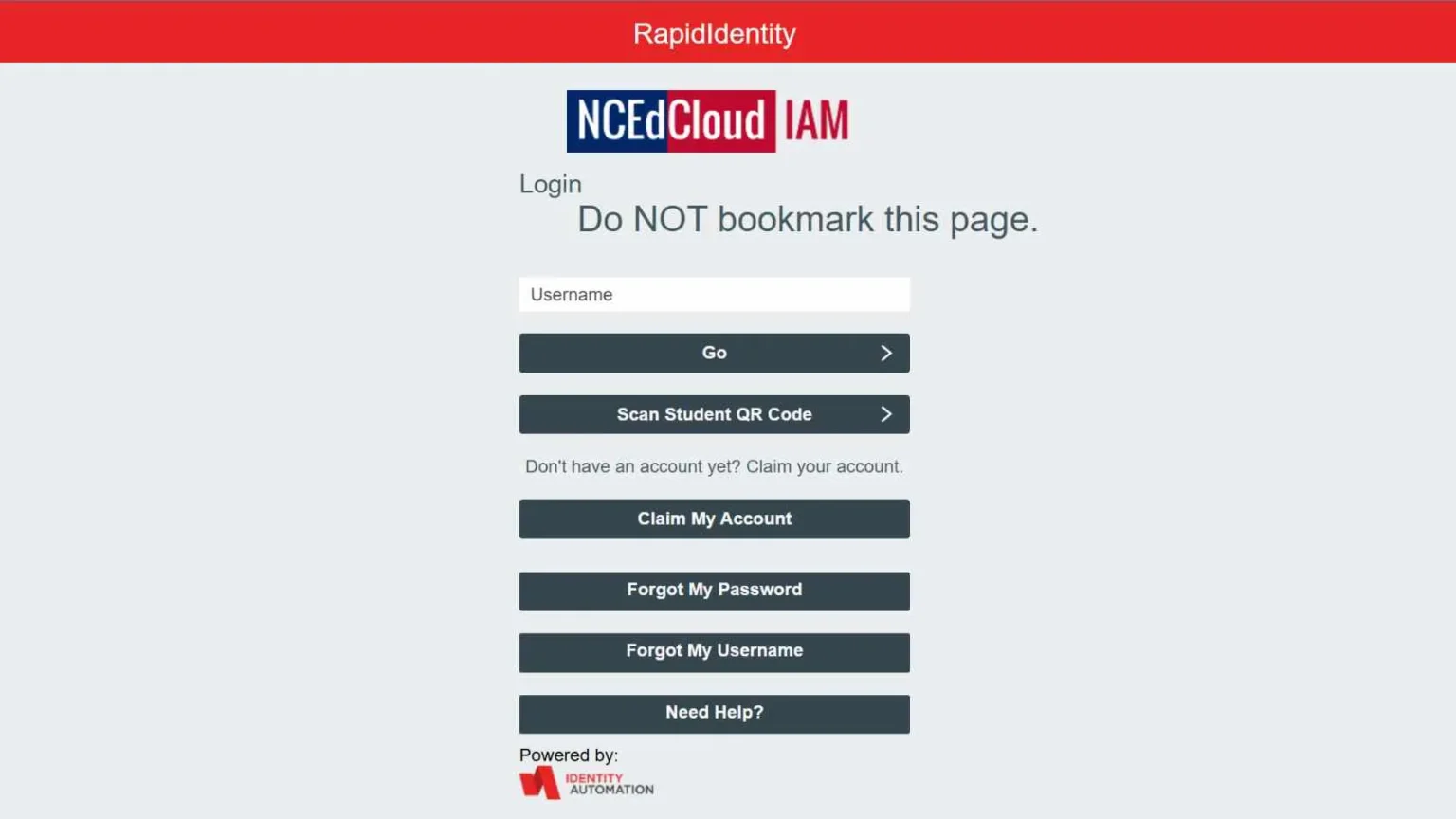
my.ncedcloud.orginto the address bar. Press Enter. Do not rely solely on search engine results, as they can sometimes cache outdated links or direct you to specific school district pages rather than the state-wide login hub. - Identify the Login Screen: You should be greeted by the RapidIdentity authentication screen. It features a clean interface with the state logo and clearly labeled input fields.
- Enter Your Username: In the field labeled "NCEdCloud Username", carefully type your 10-digit Student ID or Staff UID. Double-check for typos, especially leading or trailing spaces if you copy-pasted the number. Click the "Go" or "Next" button.
- Enter Your Password: The screen will transition to request your password. Type your password exactly as you created it. Remember that passwords are strictly case-sensitive. If you are using a shared computer, ensure the "Caps Lock" key is not inadvertently engaged.
- Click Login: Press the "Go" button. The system will take a few moments to authenticate your credentials against the state database.
- Access Your Dashboard: Upon successful authentication, you will be redirected to your personalized RapidIdentity Applications Dashboard. Here, you will see a grid of icons representing the applications you have security clearance to access.
Official Portal Access: Ready to log in right now? Click the button below to be securely redirected to the official authentication page.
Go to Official Login Portal3. Mobile Device Login Instructions (Smartphones & Tablets)
In our increasingly mobile-first world, students and educators frequently need to check grades or review assignments on the go. The NCEdCloud portal is designed with responsive web technologies, meaning it adapts seamlessly to smaller screens. However, the workflow feels slightly different.
- Open Your Mobile Browser: Launch Safari (on iOS) or Chrome (on Android).
- Go to the URL: Enter
my.ncedcloud.orgin the URL bar. You might want to bookmark this specific page on your mobile device home screen for quicker access in the future. - Enter Credentials: The interface will be vertically stacked. Tap the Username field to bring up your on-screen keyboard. Enter your UID, tap next, and then enter your password. Pay close attention to mobile keyboards that automatically capitalize the first letter of a password—this is a frequent trap for mobile users!
- Navigate the Dashboard: Once logged in, the application icons will be displayed in a responsive grid. You may need to scroll down to find the specific app you are looking for. Tapping an app (like PowerSchool) will typically open a new tab in your mobile browser.
4. Alternative Login Methods: QR Codes for Younger Students
To accommodate early learners in Grades K-5, who may struggle with typing complex 10-digit usernames and secure passwords, many North Carolina school districts implement a simplified login method using QR Code badges (sometimes referred to as Badges or Pictographs).
If your child's school utilizes this system, the login process bypasses manual typing entirely. Here is how it generally works:
- The teacher provides the student with a physical badge containing a unique QR code.
- On the main login screen, instead of typing a username, the student clicks a specific button labeled "Scan Student Badge" or a prominent QR code icon.
- The web browser will prompt the user to "Allow Access to Camera". This permission must be granted.
- The student holds their badge up to the computer's webcam. The system instantly reads the code, authenticates the identity, and logs the student directly into their dashboard.
Security Note for Parents: Treat these QR badges exactly like a written password. If a badge is lost, report it to the teacher immediately so it can be deactivated in the RapidIdentity system and a new one generated.
5. Navigating the Applications Dashboard
Once you have successfully logged in, the screen you are looking at is called the Applications Dashboard. This is your personal launchpad. It is customized dynamically based on your role (student vs. teacher) and your specific school district's subscriptions.
Common applications you will see include:
- PowerSchool (Student/Teacher Portal): This is the most frequently accessed application. It houses attendance records, official grades, class schedules, and report cards.
- Canvas LMS: The Learning Management System where teachers post daily assignments, syllabi, host discussion boards, and where students submit their digital homework.
- Schoolnet: Primarily used for state benchmark assessments, practice tests, and instructional materials.
- Discovery Education: A rich library of multimedia educational content, videos, and interactive lessons integrated directly into the curriculum.
- Google Workspace / Microsoft 365: Depending on the district, there may be direct single sign-on links to school-provided email accounts and cloud storage drives.
To launch any of these tools, simply click or tap the icon. The SSO (Single Sign-On) framework handles the authentication in the background, instantly logging you into the target application without asking for your password a second time.
6. Deep Dive into Troubleshooting Common Login Errors
Even with a robust system, errors occur. When you are prevented from logging in, it can be highly stressful. Below is a detailed technical breakdown of the most common issues users face and exactly how to resolve them without immediately needing to call the IT help desk.
"Invalid Username or Password"
This is by far the most frequent error. It simply means the system does not recognize the combination you entered.
- Solution 1: Verify you haven't swapped numbers in your UID.
- Solution 2: Check the Caps Lock key. Passwords are case-sensitive.
- Solution 3: If you are absolutely certain your username is correct, you likely need to reset your password. Use the "Forgot My Password" link (if you have claimed your account and set up challenge questions).
"Account Locked" or "Too Many Failed Attempts"
As a security measure to prevent brute-force hacking attempts, the RapidIdentity system will automatically lock an account after a certain number of consecutive failed login attempts (usually 5 to 10 attempts).
- Solution 1: Wait it out. Most district configurations have an automatic lockout timer that resets after 15 to 30 minutes. Take a break, and try again later.
- Solution 2: If you need immediate access, you must contact your school's Data Manager or your teacher, who possesses administrative privileges to manually unlock your profile.
"Session Expired" or "Stale Request"
This occurs when you leave the login screen open in a background tab for too long before attempting to log in, or if you use the browser's "Back" button during the authentication sequence.
- Solution: Close the browser tab entirely. Open a brand new tab, type
my.ncedcloud.org, and start the process fresh. Clearing your browser's cache and cookies can also permanently resolve recurring session errors.
"Bad Request (Error 400)"
This is typically a browser-side issue related to corrupted cookies or an over-aggressive ad-blocker interfering with the authentication scripts.
- Solution 1: Try logging in using your browser's "Incognito" or "Private Browsing" mode. If it works there, the issue is definitely your browser cache.
- Solution 2: Clear your browser cookies specifically for the `ncedcloud.org` and `rapididentity.com` domains.
- Solution 3: Temporarily disable browser extensions (like privacy blockers) and attempt to log in.
7. Security Best Practices for Your Account
Your NCEdCloud account holds significant personal data, including academic records, schedules, and potentially sensitive communications. Treating this account with the same level of security as a personal banking app is highly advisable.
Never Share Your Password: This is a fundamental rule. Do not share your password with friends, classmates, or even family members (unless necessary for younger students). If someone asks for your password to "check something," decline politely.
Beware of Phishing: The state of North Carolina and your school district will NEVER email or text you asking for your password. If you receive an email that looks like it is from NCEdCloud asking you to click a link and verify your credentials, inspect the URL carefully. Always manually type `my.ncedcloud.org` into your browser rather than clicking suspicious links.
Always Log Out on Shared Devices: If you are using a computer in the school library, a public library, or a shared family computer, simply closing the browser window is NOT enough. You must click your profile icon in the top right corner of the dashboard and select "Log Out." Failing to do so can allow the next person who uses that computer to access your account.
8. When to Escalate to Technical Support
If you have followed every troubleshooting step outlined in this guide and still cannot access the portal, it is time to seek official technical support. The hierarchy of support depends on your role:
- For Students: Your first point of contact should always be your homeroom teacher or the specific teacher whose class you are trying to access. Teachers have access to tools to reset student passwords or can verify if your account is active. If the teacher cannot resolve it, they will escalate it to the school's Data Manager or Media Coordinator.
- For Teachers and Staff: You should contact your school building's designated technology facilitator, Data Manager, or submit a ticket directly to your district's central IT help desk. State-level support is generally not provided directly to end-users but rather to district administrators.
Logging into the digital learning environment shouldn't be a barrier to education. By understanding the mechanics of the system, preparing your credentials, and knowing how to troubleshoot minor technical hiccups, you ensure a smooth, uninterrupted educational journey throughout the school year.
Ready to Log In?
Now that you know the steps and have your credentials ready, you can securely access your personalized applications dashboard.